Google Chrome 152 ships with the CPU Performance API, a new Web API that allows websites to estimate a device’s CPU computational capacity through a performance tier value.
While its primary goal is to help web applications adapt their behavior based on the user’s hardware, the API can also serve as a new hardware signal for hardware fingerprinting.
So, is Chrome’s new CPU Performance API a real challenge for bot detection, or is it just another trend in the browser fingerprinting puzzle? In this post, I’ll cover everything you need to know about the API, how it works, and what it means for anti-scraping systems.
An Overview of Chrome’s CPU Performance API
Before diving into the implications of Chrome’s new CPU Performance API for automated bot detection, let me first present it to you.
What Is Chrome’s CPU Performance API?
Introduced in Chrome 152, the CPU Performance API is a new Web API that lets websites estimate how powerful a user’s CPU is without disclosing detailed hardware information.
The API assigns the device running Chrome to a performance tier. Websites can access that tier (represented as a small integer) through the navigator.cpuPerformance JavaScript property. For more information, refer to the CPU Performance API Explainer.
Give your AI a web data layer – Decodo’s Web Scraping API turns any site into clean, structured data your models can actually use.
Instead of revealing the processor model, clock speed, number of cores, or other fingerprinting-sensitive details, navigator.cpuPerformance returns a small integer representing the device’s CPU performance tier. As of now, the specification defines four possible tiers:
1: Low-performance devices.
2: Entry-level to mid-range devices.
3: High-performance devices.
4: Top-tier devices.
The higher the number, the more computationally capable the device is.
Note: There’s also a special 0 tier, which indicates that Chrome couldn’t determine the device’s performance tier.
To test the CPU Performance API in your browser, run the following snippet in the Chrome DevTools Console:
if ("cpuPerformance" in navigator) {
  console.log(navigator.cpuPerformance); // 0, 1, 2, 3, or 4
}
Inspecting navigator.cpuPerformance in the Chrome DevTools Console
The API is also designed to be future-proof. Rather than reclassifying existing devices, newer and more powerful hardware would be assigned new tiers (such as 5 or 6), ensuring that today’s devices continue to receive the same classification over time.
One important aspect is that the reported tier is static. In other words, it represents the device’s hardware class rather than its current CPU utilization. A powerful machine remains a tier-4 device even if it’s temporarily under heavy load or running on low battery.
Why Was It Introduced in the First Place?
The main goal behind Chrome’s CPU Performance API is to give web devs a quick, static, and reliable way to understand a device’s capabilities.
Before this API, websites that needed to adapt their experience based on hardware performance often had to run custom JavaScript or WebAssembly benchmarks. These approaches consume CPU cycles and can produce inconsistent results depending on the device’s current workload.
With the CPU Performance API, Chrome handles the classification internally and exposes a consolidated performance tier through navigator.cpuPerformance.
This becomes particularly useful as modern web apps increasingly run tasks that require a lot of computing power. Knowing a device’s performance tier allows web applications to make smarter decisions before launching expensive workloads.
For example, imagine a browser-based photo editor that uses AI-powered image enhancement. On a high-performance device, it could run the AI model locally for faster results and better privacy. On a lower-tier device, it could switch to a lighter model or delegate the processing to the server instead.
If an application also needs to react to changing system conditions, Chrome recommends combining the CPU Performance API with the Compute Pressure API, which enables you to observe the pressure of system resources (e.g., monitoring CPU usage).
The CPU Performance API answers the question, “How powerful is this device?”, while the Compute Pressure API answers, “How busy is the CPU right now?” Together, they allow applications to make both long-term and real-time performance decisions.
Only pay for data you actually get — one request, one credit, every time. No surcharge for JS rendering, no charge when a call gets blocked. Claim your free 10,000 requests with coupon codeWEBSCR
Is the CPU Performance API Something New for Hardware Fingerprinting?
No, the CPU Performance API isn’t a revolution in browser and device fingerprinting. It’s merely a convenient API that offers an aggregated performance tier value.
In particular, there are already other APIs available for retrieving hardware-related information. Some are web standards, while others are Chromium-specific features that web developers (and, yes, also anti-bot solutions) can use to understand a device’s characteristics.
Explore these APIs!
WorkerNavigator
The WorkerNavigatorinterface exposes multiple properties that can reveal information about the user’s hardware.
One example is navigator.hardwareConcurrency, a read-only JavaScript property that returns the number of logical processors available to run threads on the user’s device.
Web devs commonly employ this property to optimize resource usage. For example, a web app could create a pool of Workers based on the number of available logical processors:
Clearly, the same information can also be useful for hardware fingerprinting. While the number of logical processors alone isn’t enough to uniquely identify a device, it provides a signal about the hardware capabilities of the user’s machine
Note: Browsers may intentionally report a lower value than the actual number of logical processors. This helps reduce fingerprinting risks and provides a more realistic estimate of how many threads a web application can run efficiently in parallel.
Device Memory API
The Device Memory API is available through the aforementioned WorkerNavigator interface. Its navigator.deviceMemory property returns an approximate amount of RAM available on the user’s device:
Note the number of GBs of RAM estimated by navigator.deviceMemory
The Device Memory API intentionally reduces precision to limit fingerprinting risks. Rather than returning the exact amount of RAM, it reports a coarsened value based on powers of two and clamps it within browser-defined limits.
However, these limits have changed over time. Since Chrome 147, desktop Chrome can report 2, 4, 8, 16, or 32 GiB, while Chrome on Android reports 1, 2, 4, or 8 GiB. Consequently, a desktop with 12 GiB of RAM might report 8 or 16 GiB, depending on the browser’s approximation, whereas Android devices remain capped at 8 GiB in Chrome 147.
The reported value should therefore be treated as an approximate capability signal, not an exact measurement of physical RAM. For example, a desktop with a high logical-core count might report 16 or 32 GiB, but a lower value is not, by itself, evidence of spoofing.
WebGPU API
The WebGPU API gives web applications direct access to the user’s GPU for high-performance graphics and general-purpose computations.
It’s been developed as the successor to WebGL. The WebGPU API enables more advanced use cases, such as complex 3D rendering, GPU-accelerated simulations, and running machine learning workloads directly in the browser.
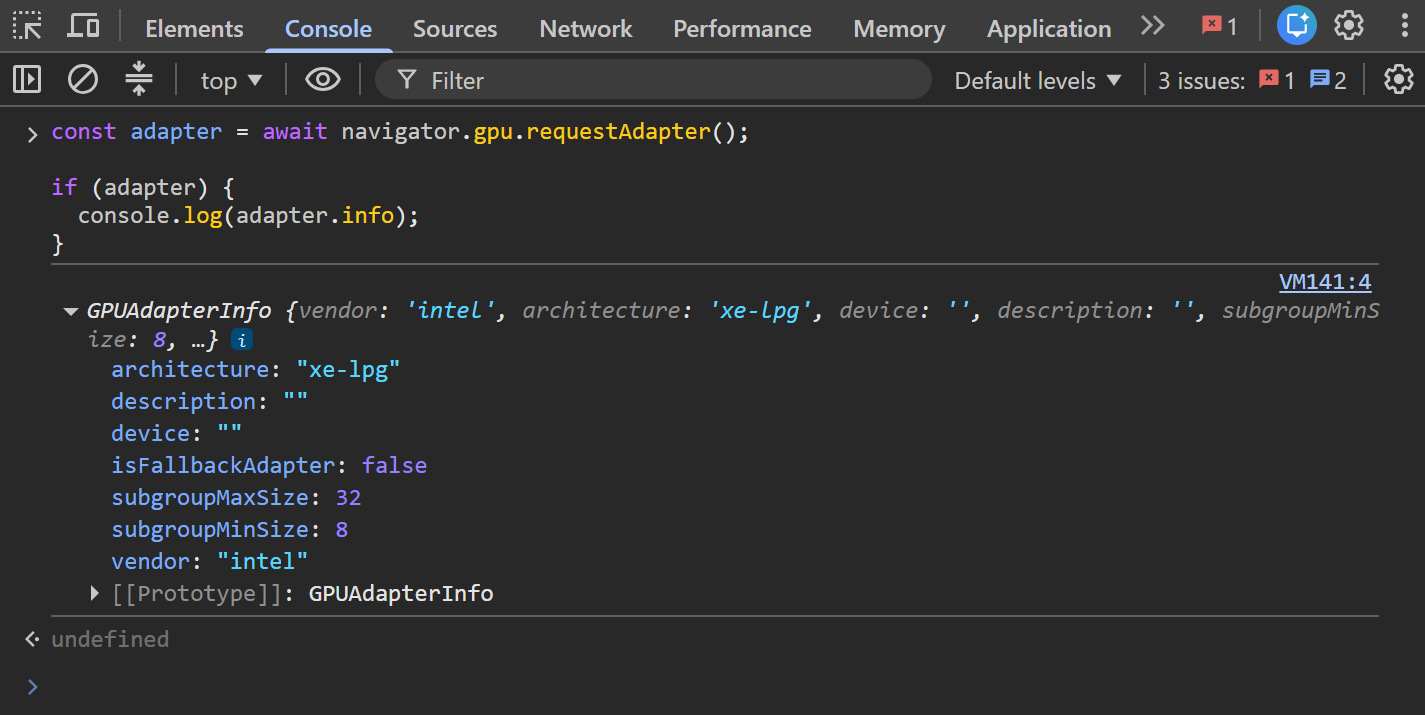
From a hardware fingerprinting perspective, WebGPU can expose information about the user’s graphics hardware through properties such as the GPU adapter details:
const adapter = await navigator.gpu.requestAdapter();

if (adapter) {
  console.log(adapter.info);
}
Retrieving information about the user’s GPU through the navigator.gpu.requestAdapter() async method
This type of information can become a valuable fingerprinting signal because GPU models and capabilities vary considerably across devices.
Summarizer API
The Summarizer API is an experimental Chromium-based browser API that allows websites to generate text summaries using a built-in, on-device AI model.
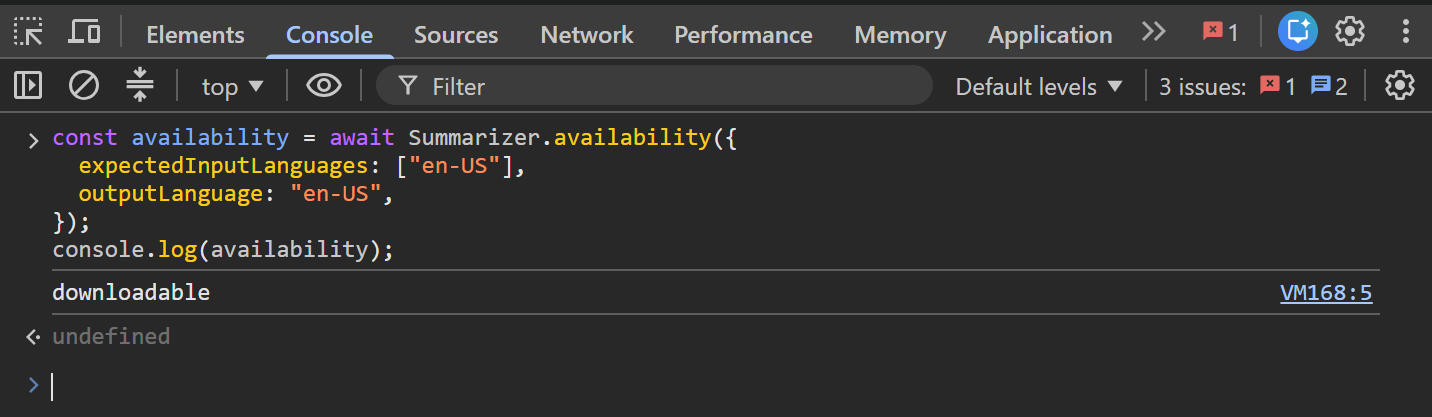
Before using the API, websites can call Summarizer.availability() to determine whether the device can run the local AI model:
downloadable: The browser supports the requested configuration, but it needs to download an AI model or additional fine-tuning data before it can run it.
downloading:The browser supports the requested configuration, but an ongoing download must complete before the API becomes available.
available: The browser already has everything required to run the requested configuration without any additional downloads.
unavailable: The browser or device doesn’t support the requested configuration.
A possible result from the Summarizer.availability() check
Behind the scenes, this classification depends on hardware requirements such as available RAM, VRAM, and CPU cores. For instance, devices with less than 16GB of RAM mightn’t support the API. As a result, the Summarizer API is also relevant from a hardware fingerprinting perspective.
Is Chrome’s New CPU Performance Tier Fingerprinting an Issue for Web Scraping?
No, not necessarily.
Since navigator.cpuPerformance is exposed to JavaScript, it can be spoofed by definition. A browser automation tool (used for web scraping or automation) can modify the property’s value to report any performance tier it wants.
In detail, there are two main approaches to spoofing navigator.cpuPerformance.
The first is a JavaScript-level override. The idea is to let the automation framework inject a JS script before the page loads and redefine the property using Object.defineProperty():
Now, when the page’s fingerprinting scripts run, navigator.cpuPerformance will always return 4. That is the case even if the scraper is running on a server with much weaker hardware.
The main limitation of this method is that sophisticated bot detection systems (e.g., advanced WAFs) can usually spot JavaScript-level spoofing. That’s possible as native browser properties have well-defined behaviors (e.g., they’re read-only), whereas properties overridden with Object.defineProperty() may expose inconsistencies.
The second approach is to patch Chromium itself, typically by modifying the underlying C++ implementation that exposes navigator.cpuPerformance. In this case, the spoofed value is generated by the browser engine itself, making it virtually impossible to distinguish from a genuine browser.
The problem is that, for most scraping users, maintaining a custom Chromium build isn’t practical. The solution is to rely on existing stealth browser solutions. These include:
These tools already implement low-level fingerprinting protections, allowing you to launch stealth browser sessions.
So, why all the fuss? If spoofing the API is relatively straightforward, why dedicate an entire article to it? Because, as is generally the case in our industry, it’s more complex than that…
When the CPU Tier Becomes a Real Issue for Bot Detection
By itself, navigator.cpuPerformance isn’t a particularly interesting fingerprinting signal. After all, you can just spoof its value.
What anti-bot systems actually care about is consistency. Modern fingerprinting (at any level, but especially at the browser and hardware levels) rarely relies on a single signal. Quite the opposite, detection systems correlate dozens of hardware, browser, and behavioral signals to determine whether they describe the same device.
The CPU Performance API is another piece of that puzzle. For example, a browser claiming to be running on a high-end Tier 4 machine should probably also expose a reasonable number of logical CPU cores through navigator.hardwareConcurrency, enough RAM via navigator.deviceMemory, and a GPU consistent with a modern desktop. (That’s also why I decided to cover other APIs that contribute to hardware fingerprinting when writing this article.)
If those values don’t line up (e.g., a Tier 4 CPU paired with only two logical cores and 2GB of RAM), that inconsistency immediately becomes suspicious. Considering that most production-ready scrapers run on servers while spoofing multiple signals to appear as regular user sessions, missing even a single fingerprinting property, such as navigator.cpuPerformance, can be enough to trigger bot detection.
Ultimately, the CPU Performance API isn’t the real challenge. As is the case with browser fingerprinting, the hard part is making sure every exposed hardware signal tells the same believable story.
The Web Scraping Club is a reader-supported publication. To receive new posts and support my work, consider becoming a free or paid subscriber.
Conclusion
In this blog post, I walked you through what Chrome’s CPU Performance API is, why Chrome introduced it, how it works, and why navigator.cpuPerformance matters in the context of hardware fingerprinting for automated bot detection.
I hope you enjoyed the article and learned something new along the way. If you have any questions or want to share your thoughts, feel free to leave a comment below. Until next time!
FAQ
Which versions of Chrome support the CPU Performance API?
The CPU Performance API was introduced in Chrome 152. It’s expected to become available with the Chrome 152 stable release. Other Chromium-based browsers may adopt it in future versions.
Does the new Chrome CPU Performance API introduce privacy issues?
As covered in the official specification, Chrome’s navigator.cpuPerformance property intentionally returns only broad performance tiers instead of detailed CPU information in order to reduce potential privacy implications.
Can I avoid navigator.cpuPerformance detection by automating Firefox instead of Chrome?
As of this writing, yes. The CPU Performance API is a Chromium-specific feature and isn’t available in Firefox. However, Gecko-based browsers could implement something similar in the future.
Did you like this article? Share it with someone who might find it useful and get a discount on paid plans.