

Understanding whether a page renders content using JavaScript should start with a simple question: “Is my scraper returning nothing because the page needs JavaScript, or because something else is wrong?”
That’s because you can consider any empty extraction as proof that the page is JavaScript-rendered and reach for a browser right away. But that only addresses part of the problem, and often it addresses the wrong one. This happens because an empty result can also come from a wrong selector, from a redirect your client followed without you noticing, or from a CAPTCHA page served in place of the content you actually wanted.
That’s where a diagnostic process comes in, and it makes the decision much faster and cheaper.
In this article, we’ll discuss how a headless browser differs from a plain HTTP request, the signs that suggest JavaScript rendering is involved, the quick tests to run before you commit to a browser, and how to choose between Puppeteer, Playwright, and Selenium based on the shape of your actual workload.
Give your AI a web data layer – Decodo’s Web Data API turns any site into clean, structured data your models can actually use.

How a Headless Browser Differs From a Plain HTTP Request
A headless browser is an actual browser engine that runs without a visible interface. It loads pages, builds the document object model (DOM), executes JavaScript, and handles interaction like a human visitor would do on the target website. In other words, you are programmatically controlling a real browser under the hood of your requests, managing clicks on an onscreen video.
That matters because a page’s initial HTML isn’t always the page you see after it finishes loading. In many web pages, what you don’t see is that JavaScript can request additional data, insert product listings, update prices, or reveal content after an interaction. This means that the website you’re visiting for scraping it displays the whole data after some interaction.
In those cases, headless browsers come in handy. That is because a headless browser can execute the needed interactions and let you inspect the resulting DOM. It can also click buttons, scroll, wait for specific elements to appear, and much more.
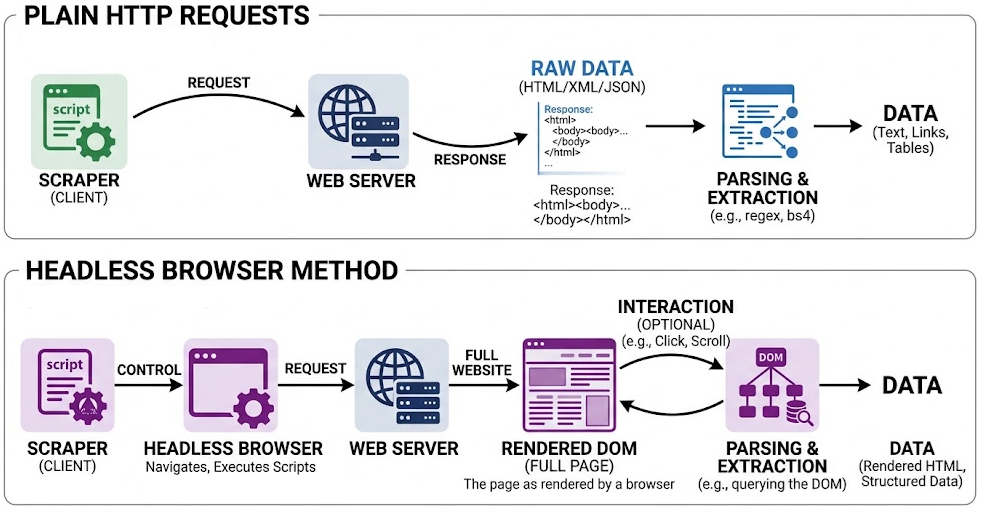
On the other hand, a plain HTTP client takes a narrower approach. It sends a request to a URL and downloads the server’s response. If that response contains HTML, you can parse it and extract whatever’s already there. However, the client doesn’t execute page scripts, build the live DOM, or automatically make the additional requests those scripts would trigger.
The image below schematically shows that difference in request mode:
Playwright, Puppeteer, or Selenium? Choosing your browser is one part of the setup. anyIP provides residential and mobile proxies worldwide to support your scraping workflows. From the very first request to the pages that need a full browser.

Symptoms a Page Needs a Headless Browser
Now, here’s a question for you: “How do you know if your requests actually need a headless browser before starting to scrape a target website?”
This question is important, but unfortunately there’s no quick answer. That’s because scraping websites is an engineering matter. And like any engineering task, you should proceed methodically and scientifically, as much as possible. Specifically speaking, an empty extraction result can make a headless browser seem like the obvious next step. But “my scraper found nothing” doesn’t necessarily mean “this page needs JavaScript” because:
Your selector could be wrong.
Your request could’ve followed a redirect.
The server could’ve returned a CAPTCHA challenge instead of the content you expected.
So, the signs presented in this paragraph suggest that fetching and parsing the page’s HTML won’t be enough. However, they don’t automatically prove you need a headless browser. For a complete engineering process, other than only the symptoms, consider also the tests you can perform in the next section before deciding whether you actually need a headless browser.
Symptom #1: Empty or Skeletal HTML Source
A skeletal response contains the structure of a web application, but little of the content you want to scrape. Below is an example of it:
<!DOCTYPE html>
<html lang="en">
  <head>
    <meta charset="utf-8" />
    <meta name="viewport" content="width=device-width, initial-scale=1" />
    <title>Acme Store</title>
    <meta name="description" content="" />
    <link rel="icon" href="/static/favicon.ico" />
    <link rel="preconnect" href="https://api.acme-store.com" crossorigin />
    <link rel="stylesheet" href="/static/css/main.3f2a91c4.chunk.css" />
    <link rel="preload" href="/static/js/runtime~main.8c1b2d0e.js" as="script" />
  </head>
  <body>
    <noscript>You need to enable JavaScript to run this app.</noscript>
    <div id="root"></div>

    <script>
      window.__APP_CONFIG__ = {
        apiBase: "https://api.acme-store.com/v2",
        locale: "en-US",
        buildId: "20261007.1"
      };
    </script>
    <script src="/static/js/runtime~main.8c1b2d0e.js"></script>
    <script src="/static/js/vendors~main.7b4e9a12.chunk.js"></script>
    <script src="/static/js/main.5d0c3f77.chunk.js"></script>
  </body>
</html>
In such cases, everything a scraper would want to get (like product names, prices, table rows, article text, etv) is absent and only exists once the system loads the three bundles. The bundling happens at the bottom when the script executes and fetches data from the apiBase endpoint declared in window.APP_CONFIG. This means that, in such a case, a browser can execute the bundles, retrieve data, and build the missing elements. Only after that process is completed, your scraper can get the data you want from the target page.
Other similar responses look more complete, but still contain only placeholders. For example, you might find something like “Loading…” text, markup for a spinner, or an empty product grid. Often, even navigation and headings are present, yet product names, prices, and listings are absent. These symptoms suggest that JavaScript supplies the content after the initial document arrives.
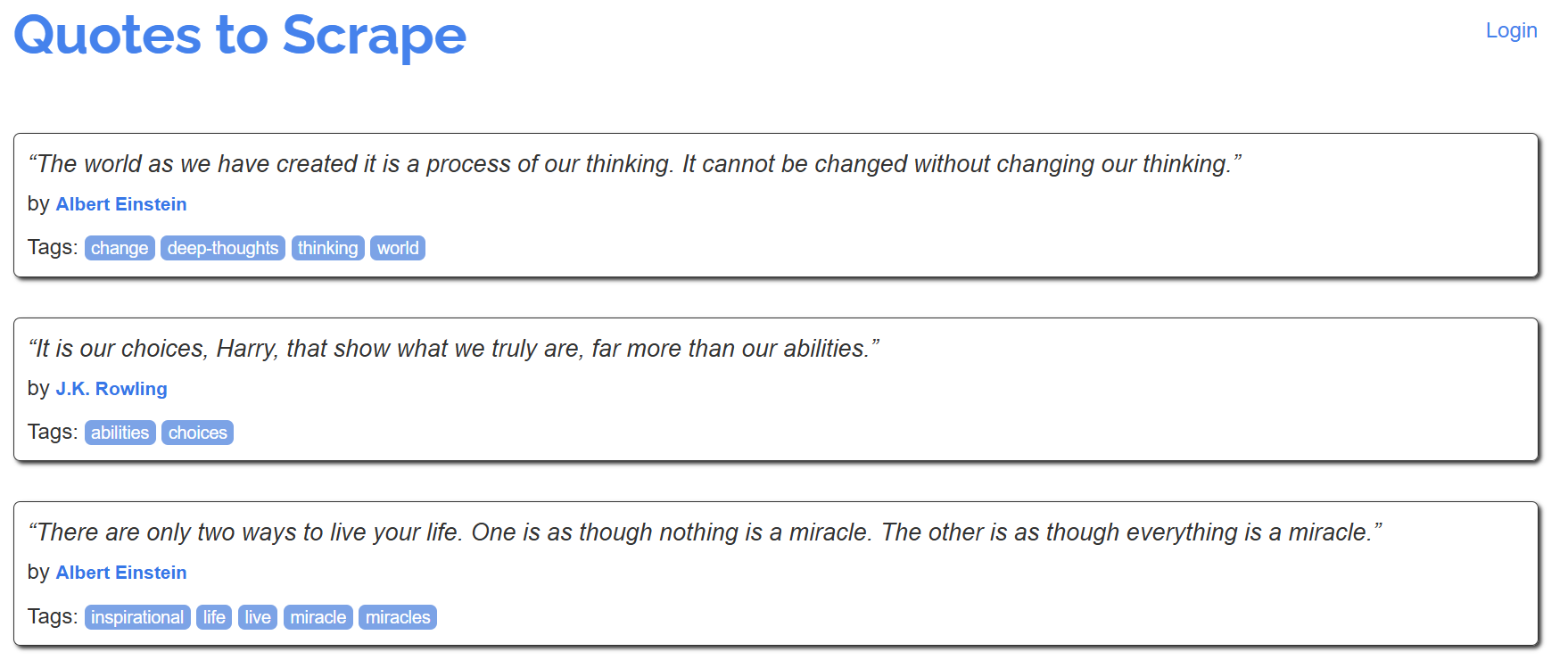
However, missing elements don’t necessarily mean missing data. Some pages embed their records in script tags or serialized application state. If your target values are already there, you can potentially extract them without rendering. That is exactly what the upcoming example shows. Consider this target page that renders quotes dynamically:
In an activated virtual environment, install the needed libraries:
pip install requests beautifulsoup4Use the following Python script:
import requests

from bs4 import BeautifulSoup
response = requests.get("https://quotes.toscrape.com/js/", timeout=30)
soup = BeautifulSoup(response.text, "html.parser")

print(response.text)
When running the snippet, the result you will receive is the following:
<!DOCTYPE html>
<html lang="en">
<head>
<meta charset="UTF-8">
<title>Quotes to Scrape</title>
<link rel="stylesheet" href="/static/bootstrap.min.css">
<link rel="stylesheet" href="/static/main.css">
</head>
<body>
<div class="container">
<div class="row header-box">
<div class="col-md-8">
<h1>
<a href="/" style="text-decoration: none">Quotes to Scrape</a>
</h1>
</div>
<div class="col-md-4">
<p>
<a href="/login">Login</a>
</p>
</div>
</div>
<script src="/static/jquery.js"></script>
<script>
var data = [
{
"tags": [
"change",
"deep-thoughts",
"thinking",
"world"
],
"author": {
"name": "Albert Einstein",
"goodreads_link": "/author/show/9810.Albert_Einstein",
"slug": "Albert-Einstein"
},
"text": "\u201cThe world as we have created it is a process of our thinking. It cannot be changed without changing our thinking.\u201d"
},
// {...OMITTED FOR BREVITY...}
];
for (var i in data) {
var d = data[i];
var tags = $.map(d['tags'], function(t) {
return "<a class='tag'>" + t + "</a>";
}).join(" ");
document.write("<div class='quote'><span class='text'>" + d\['text'] + "</span><span>by <small class='author'>" + d['author'\]['name'] + "</small></span><div class='tags'>Tags: " + tags + "</div></div>");
}
</script>
<nav>
<ul class="pager">
<li class="next">
<a href="/js/page/2/">Next <span aria-hidden="true">→</span></a>
</li>
</ul>
</nav>
</div>
<footer class="footer">
<div class="container">
<p class="text-muted">
Quotes by: <a href="https://www.goodreads.com/quotes">GoodReads.com</a>
</p>
<p class="copyright">
Made with <span class='zyte'>❤</span> by <a class='zyte' href="https://www.zyte.com">Zyte</a>
</p>
</div>
</footer>
</body>
</html>What matters here is focusing on <script src=”/static/jquery.js”></script>. This means that the content is loaded via a script. But since requests has no JavaScript engine and no rendering engine, BeautifulSoup parses the text into a tree, but it never executes anything inside a script. In other words, you get the whole nested content, not the “clean” one you’d like.
“Data is the new oil.”
You’ve heard it a hundred times, but do you know who does the drilling?
With AI, it’s more true than ever. Models are trained on data scraped from the web. Agents need browser automation that doesn’t fall over at the first CAPTCHA. But who’s doing the heavy lifting? Proxies that actually work.

That’s why we partnered with Geonode for an aperitivo on 5 November in Milan.
No talks to sit through but just people who build scrapers, data pipelines and AI agents for a living, and a drink.
If you’re one of them, here’s the link to join: https://luma.com/5c4v7zjk
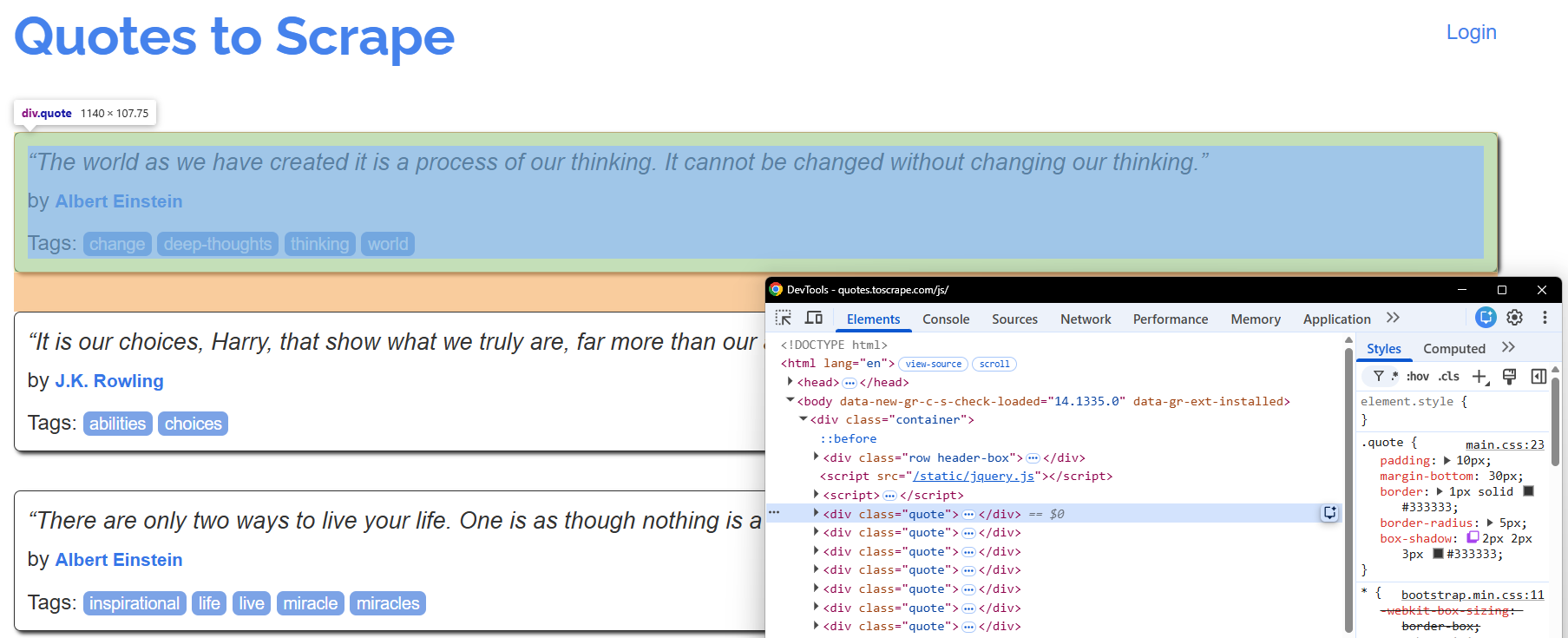
Another way to see this is to inspect the page to intercept the selector that contains the quotes:
Now, if you run the following Python script:
import requests

from bs4 import BeautifulSoup
response = requests.get("https://quotes.toscrape.com/js/", timeout=30)
soup = BeautifulSoup(response.text, "html.parser")

print(soup.select(".product-item"))
You will obtain an empty list like so:
[]That happens exactly because the code can’t intercept the selector, because the selector needs JavaScript rendering as a previous step.
Symptom #2: Content Hidden Behind User Interaction
Some content can’t be rendered until a visitor clicks, scrolls, hovers, or submits a form. Infinite-scroll listings, “load more” buttons, and expandable menus are common examples of this behaviour: the initial response contains the first batch of records, while JavaScript requests additional batches as the user interacts.
Multi-step flows introduce further dependencies:
A login can establish a session.
A date picker can set search parameters.
A filter can trigger a new request.
Later results may depend on cookies or values produced by earlier actions.
So, merely opening the page in a headless browser won’t complete those steps automatically.
These rendering processes are important to understand, because successfully scraping the initial HTML doesn’t guarantee complete coverage in some cases.
Symptom #3: Hitting Bot Defenses
Sometimes your HTTP client receives a defense page rather than the requested content. In such cases, the underlying page might be fully rendered, but an access-verification layer prevents your client from reaching it.
Typical symptoms of this include an interstitial “checking your browser” page, a 403 response, or a CAPTCHA that appears for your HTTP client but not during an ordinary browser visit. However, none of these symptoms alone proves that JavaScript rendering is the solution. A 403 can indicate missing authorization, and CAPTCHA behavior can vary with session history, request volume, or network origin.
But note that these are not the only ones. For example, say you want to scrape the following target product from L’Occitane:

Consider using the following script:
import requests
from bs4 import BeautifulSoup

response = requests.get("https://www.loccitane.com/en-us/immortelle-divine-youth-oil-27DH030I22.html", timeout=30)
soup = BeautifulSoup(response.text, "html.parser")

print(f"HTTP status : {response.status_code}")
print(f"HTML length : {len(response.text):,} characters")
When running the script, the result you will obtain is the following:

This is where you could think that everything went well. After all, the status is 200 and content is rendered (807 characters). However, change the script to the following:
import requests
from bs4 import BeautifulSoup

response = requests.get("https://www.loccitane.com/en-us/immortelle-divine-youth-oil-27DH030I22.html", timeout=30)
soup = BeautifulSoup(response.text, "html.parser")

print(response.text)
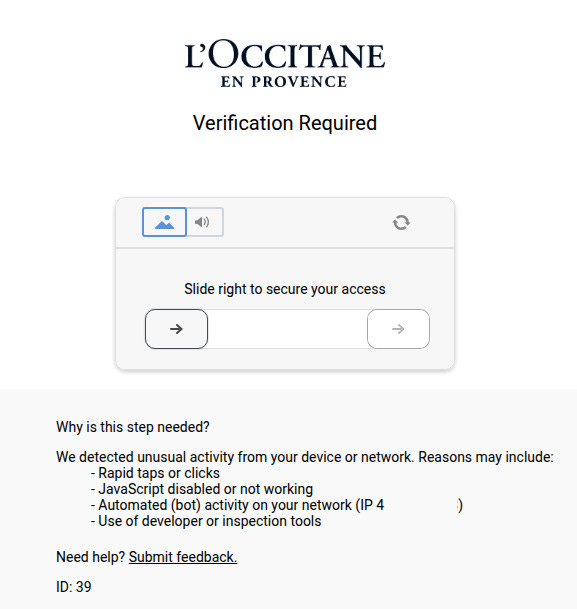
When running it, you will see that your scraper has hit a CAPTCHA:

Note that, in such cases, using a headless browser is not a guarantee to pass the CAPTCHA wall. Automated browsers can also be detected or blocked. However, you can use headless browsers for debugging purposes and, for example, take a screenshot when the content is rendered to visualize what’s happening:
Quick Tests to Run Before Reaching for a Browser
As you’ve seen until now, there’s a set of different situations in which you may need a headless browser to render content before you retrieve the data from a target website.
In this paragraph, I want to show you some quick tests you can perform on a target page to understand if you need JavaScript rendering.
Inspect Elements
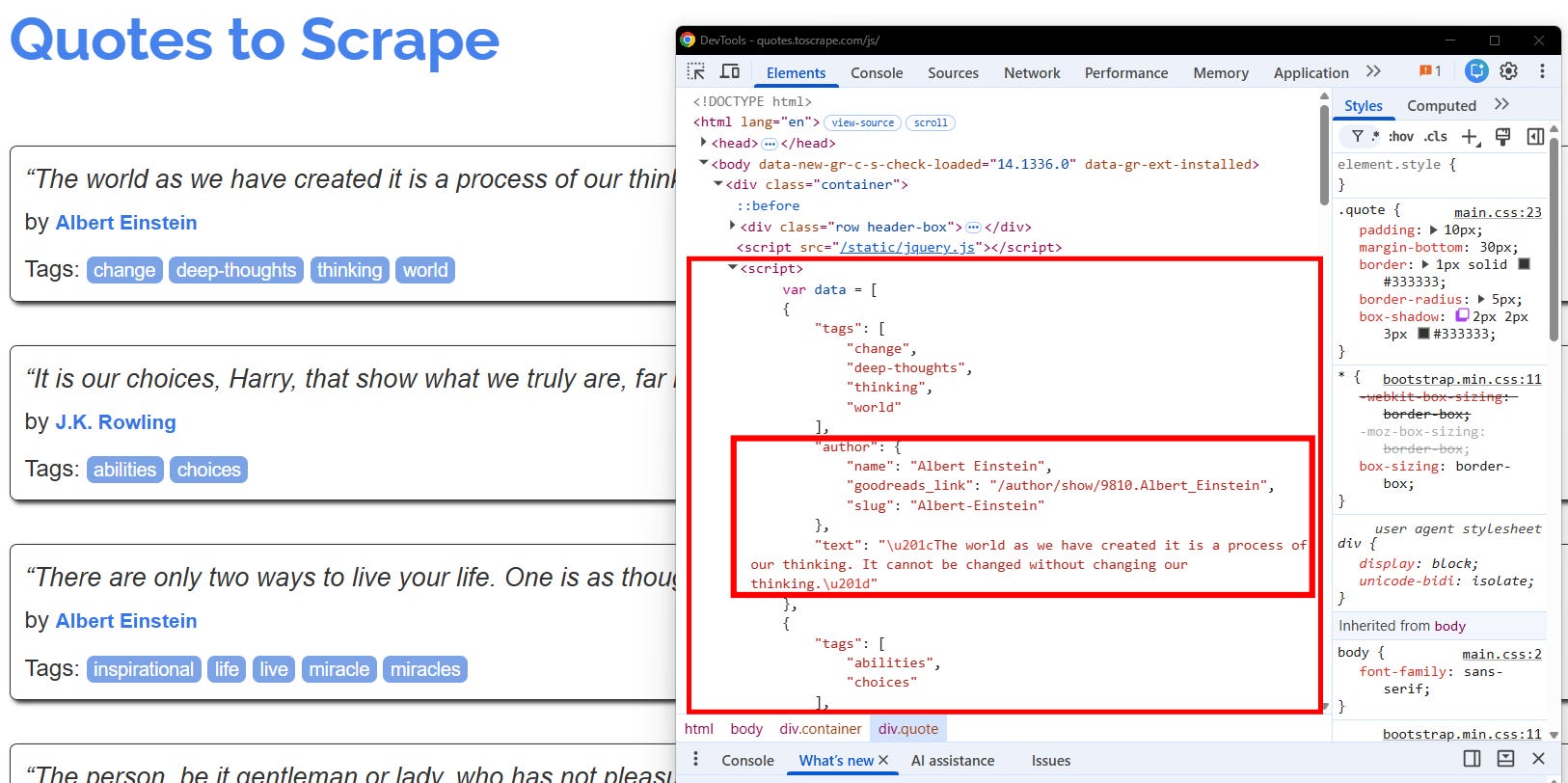
The first test you should always do is inspect the page to see if there are some tags that suggest content is loaded dynamically. I previously showed that the website “Quotes to scrape” loads its content via <script src=”/static/jquery.js”></script>. This can be seen when inspecting the page:
Disable JavaScript and Reload
Sometimes, there is no visible script tag that tells you the content is dynamically rendered. For example, consider the following target page:
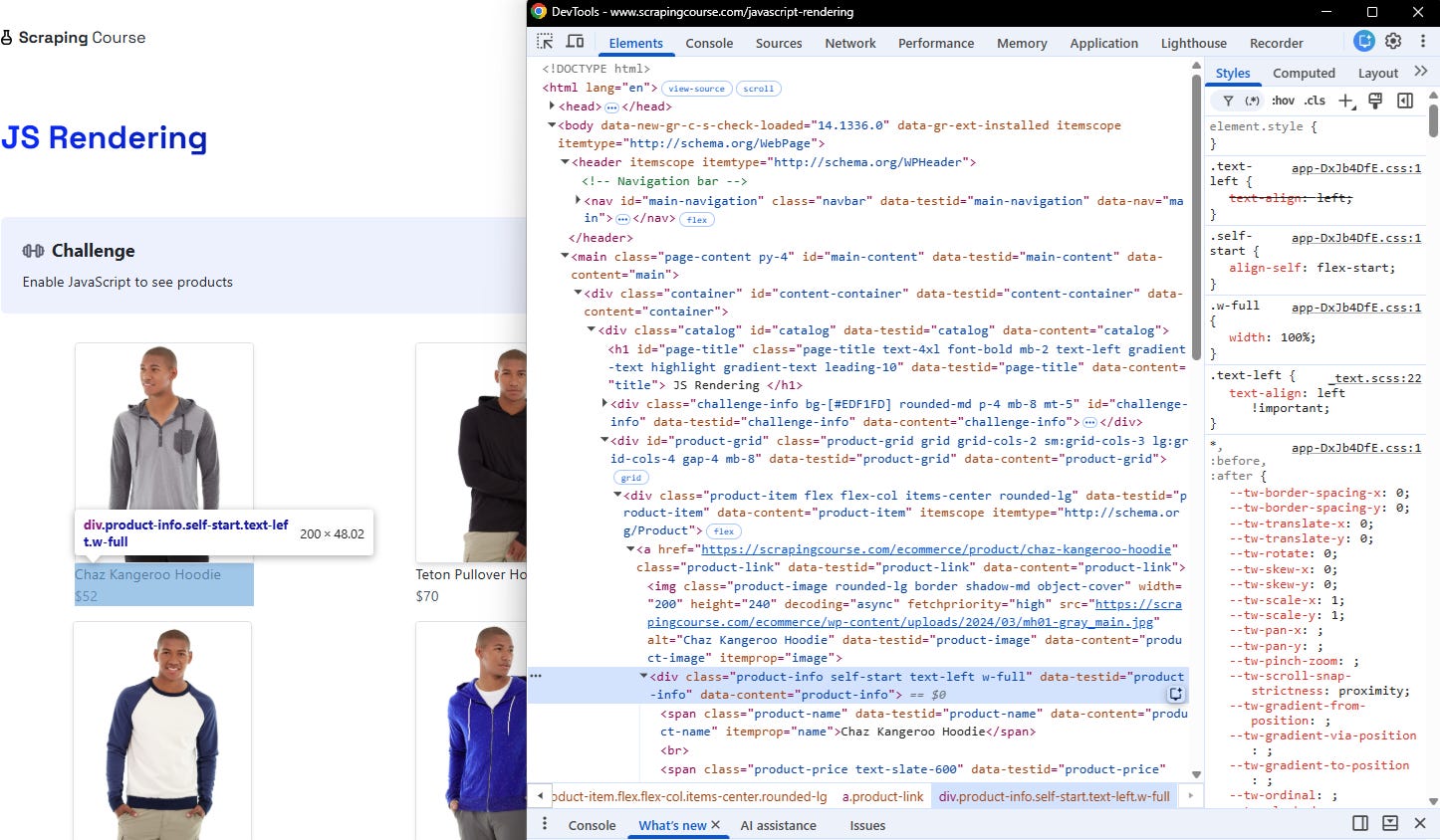
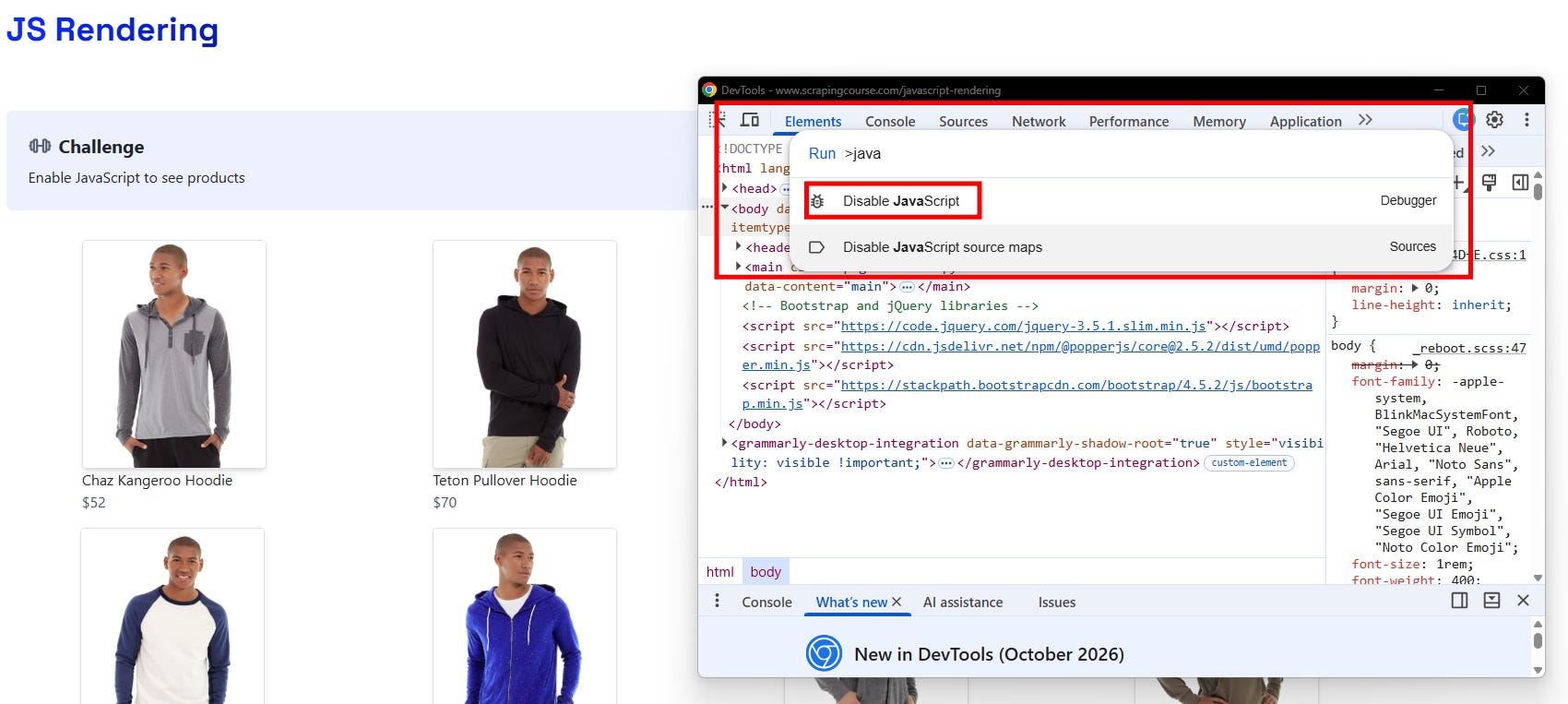
As you can see, the CSS selector is nested in a structure that seems ordinary. No signs of script tags. In such cases, before rushing into code, use your browser’s developer tools or site settings to disable JavaScript, then reload the page. The setting’s location varies, but the objective is the same: inspect what the server provides without page scripts executing. In Chrome, open the settings, type “JavaScript,” and click on Disable JavaScript:
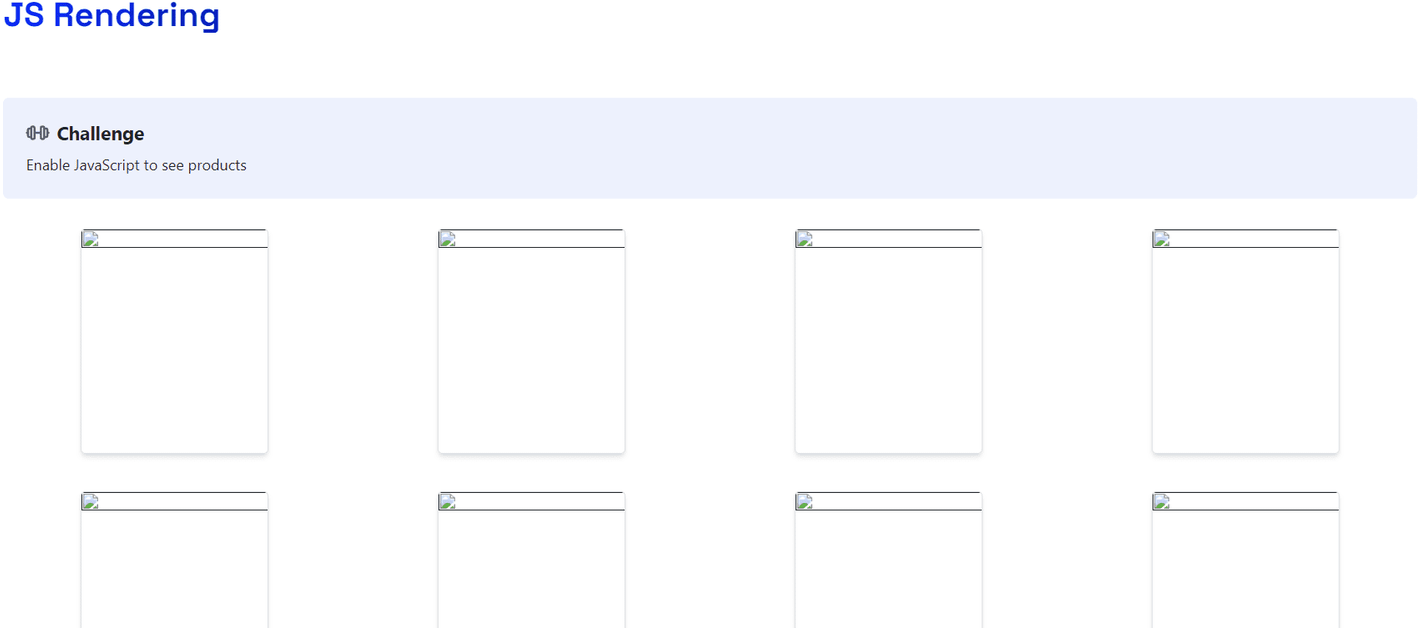
After reloading the page, you’ll see that content needs to be rendered:
Read the Network Tab
There are pages in which the content is dynamically loaded via APIs, and there are two cases:
APIs are external to the target website.
APIs are internal to the website (or are encrypted).
This distinction is useful because, in the case of external APIs, you can try to intercept them and get the content from there - and in some cases that is the easier path. Consider the following example from a Swiss real estate website:
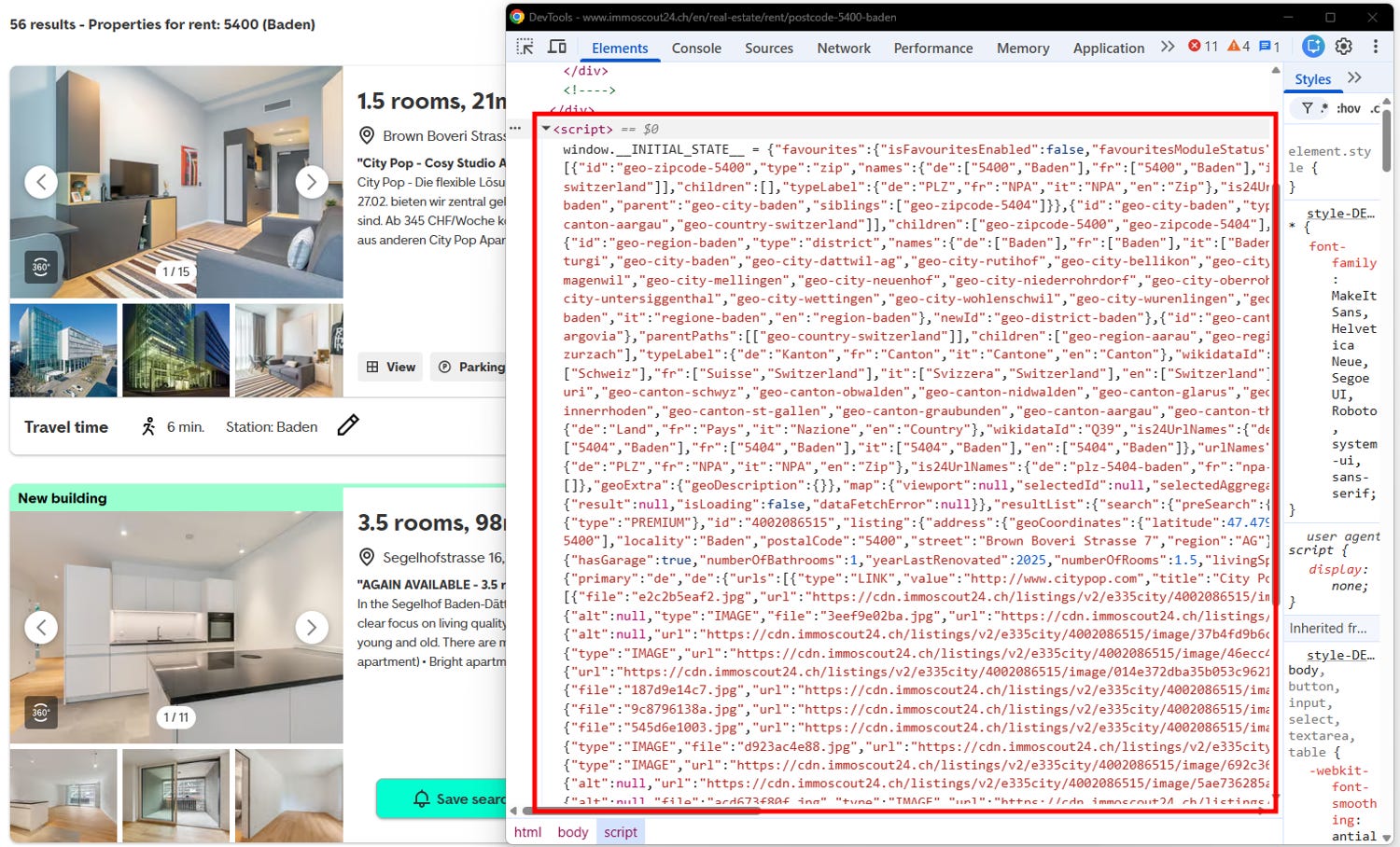
As you can see, the content is rendered via a script. Now, if you go to the Network tab, you can see the API that is called under the hood to render the content:
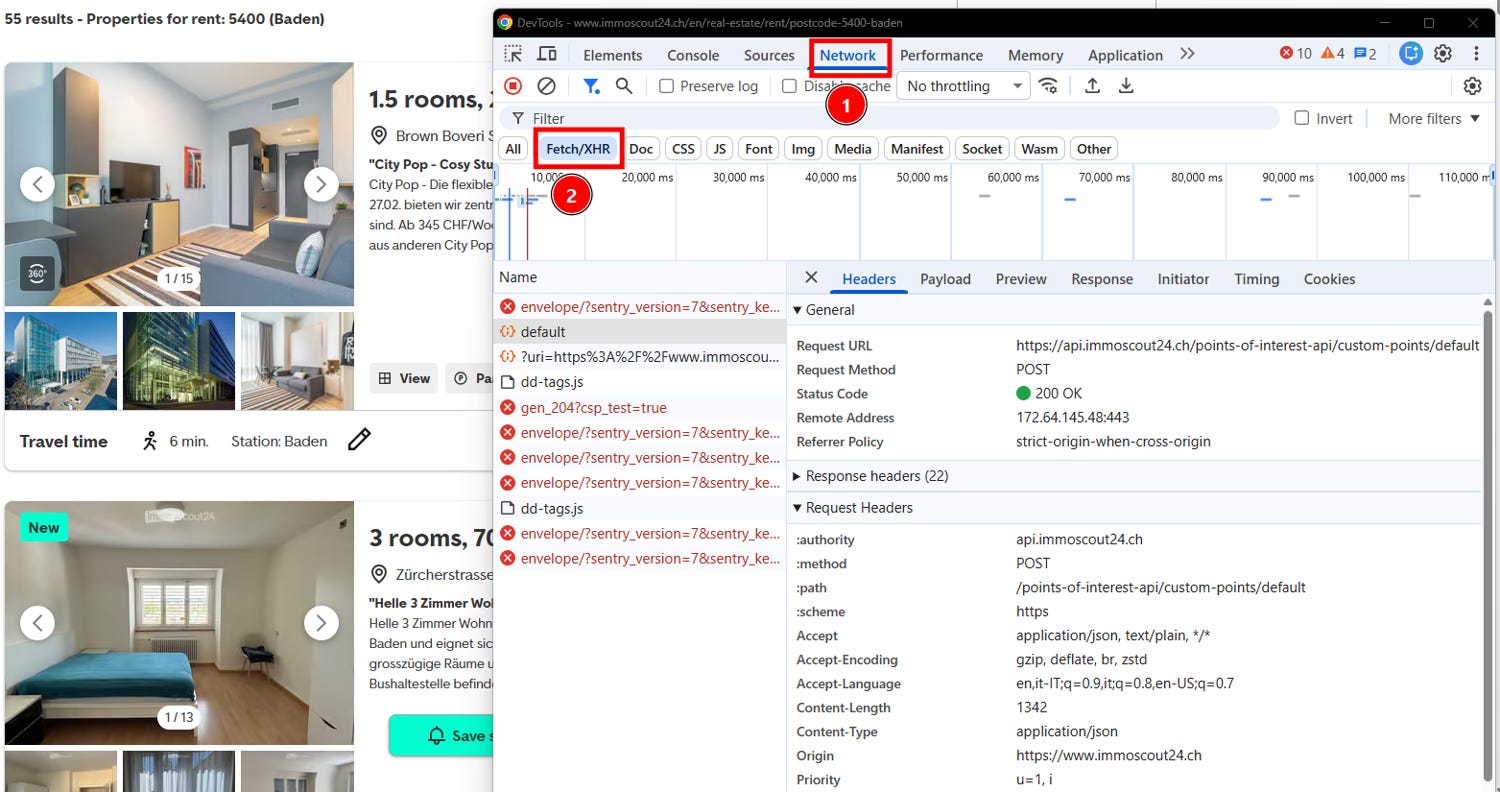
In this case, the rendering APIs are internal, so you can’t reverse-engineer them to extract the content. However, the inspection process stays the same, and it’s valid.
Choosing the Headless Browser That Fits Your Needs
Once the diagnostic process above confirms that your target renders its content client-side, the next decision is which automation tool drives that rendering. The three mainly established options are Puppeteer, Playwright, and Selenium.
They overlap in what they can do, but they differ in protocol, language support, browser coverage, and how much resilience they build in for you. One thing holds for all three, though, and it echoes the caveat from the bot-defense section: running a real browser engine does not automatically defeat fingerprinting or a CAPTCHA. All three set navigator.webdriver to true by default, and headless builds can leak engine-specific tells such as a HeadlessChrome user-agent token, depending on the engine and the version you pin.
Tool choice affects your maintainability and coverage in two ways: what the framework does for you, and how well you can keep it disguised. Both matter, and the second one is covered separately.
Puppeteer
Puppeteer is a Node.js library maintained by Google that controls Chrome through the Chrome DevTools Protocol (CDP), the same low-level channel DevTools itself uses. Because it speaks the browser’s native protocol rather than a generic abstraction, it feels less like an external driver and more like a scripted extension of the browser.
Since version 23, Puppeteer also drives Firefox stably, over WebDriver BiDi, the protocol the browser vendors and the Selenium project designed together. BiDi is now what Puppeteer uses by default when you launch Firefox, while Chrome still defaults to CDP. Treat Chromium as the primary path regardless: the full feature surface still lives in CDP, and CDP-only capabilities such as coverage, tracing, accessibility emulation, screencasts, most network and CPU emulation, and service-worker bypass throw UnsupportedOperation when you are on the BiDi path.
Main features:
Automatic download of a known-compatible browser build, so you rarely fight version mismatches, and a reproducible Chrome for Testing version across machines and CI.
A concise high-level API covering navigation, clicking, typing, and waitForSelector-style waits.
A Locator API that checks actionability before acting. Locators retry the entire operation until the element is inside the viewport, visible, enabled, and its bounding box is stable across two consecutive animation frames. The documentation recommends locators as the standard way to select and interact with elements.
Native network interception over CDP, letting you block, modify, or mock requests and responses in flight.
Access to tracing, coverage, and performance metrics for profiling.
Incognito browser contexts through browser.createBrowserContext(), for isolated sessions inside a single browser process.
Pros:
Speed and depth of control on Chrome, with a raw CDP escape hatch for anything the high-level API does not cover.
Locators remove most timing flake without you hand-rolling waits, because actionability is checked for you on every retry.
The API is compact enough to learn in an afternoon.
It is the de facto standard for Chrome-focused scraping and rendering pipelines, so documentation and community solutions are abundant.
Cons:
Its auto-waiting stops short of Playwright’s. Locators do not perform a hit-target check, so an element hidden behind an overlay still receives the click, and there is no strict-mode resolution when a selector matches several elements. The legacy page.click(selector) path also waits only for existence, for backward compatibility. On modern single-page applications you will still write explicit waits in places.
Chrome and Firefox only: there is no WebKit engine, so nothing Safari-shaped.
Browser coverage is real but lopsided, since the Firefox path exposes a smaller API than the Chromium one.
Node.js-first orientation. Alternatives in other languages are unofficial ports.
It has shifted across major versions in ways that occasionally break existing scripts, including the headless-mode rename and the protocol default for Firefox.
Playwright
Playwright is a Microsoft-developed automation framework built by much of the team behind Puppeteer, designed from the start to drive Chromium, Firefox, and WebKit through a single unified API. It ships official bindings for Node.js, Python, Java, and .NET, which makes it the most accessible of the three if your stack isn’t JavaScript.
One scope detail worth stating plainly: Playwright ships its own patched builds of Firefox and WebKit. WebKit behaves like Safari but is not Safari, and Firefox is not the Firefox you have installed. If you need the vendor browser, Playwright lets you switch to it with channel (chrome, msedge, chrome-beta, chrome-dev, chrome-canary) or executablePath, but that applies to the Chromium family only. It cannot drive a system Firefox or a genuine Safari installation.
Main features:
Automatic actionability waiting. Clicks and assertions wait until the element is actionable, including a hit-target check that confirms the element would actually receive the event rather than being covered by something else.
Strict locators. A selector that resolves to more than one element throws instead of silently acting on the first match, which surfaces bad selectors early rather than scraping the wrong row.
Network interception and response mocking through page.route, plus a plain HTTP request context for endpoints you do not need to render.
HAR recording, both from the command line with –save-har and through the API, and the ability to route a run from a previously saved HAR. This gives you every request a page made, not just the clicks you performed.
Browser contexts for isolated sessions, each with its own cookies, storage, and proxy settings, all inside one browser process.
A built-in codegen recorder, a trace viewer for replaying failed runs, video recording, and mobile device emulation.
Remote attachment through connect() and connectOverCDP(), so you can drive browsers running elsewhere.
Pros:
Cross-browser coverage from one API.
Dramatically fewer flaky runs thanks to actionability waiting and strictness.
Cheap parallelism through contexts, since many sessions share one browser process instead of each paying for a full instance.
A debugging experience that is currently the best in the category.
Very active development.
CDP remains reachable on Chromium through context.newCDPSession(page), so you are not locked out of Chrome-specific tooling by choosing the abstraction.
Cons:
A larger installation footprint, since it typically downloads three browser binaries.
A steeper learning curve than Puppeteer’s straightforward page object, and the real costs sit at library level rather than in the test runner: locator strictness, frame locators, storageState and context lifecycle, and in Python the choice between the synchronous and asynchronous APIs. That last one is a concurrency decision, because the sync API cannot run inside a running asyncio loop.
Newer capabilities sometimes land in the Node binding before reaching the other languages.
Browser builds are Playwright’s choice, not yours, so version pinning follows its release cadence.
Like the others, it remains recognizable as an automated browser without additional masking.
Selenium
Selenium is the oldest and most broadly deployed of the three, and it drives browsers through the standardized W3C WebDriver protocol rather than a vendor-specific one. Bindings exist for Java, Python, C#, Ruby, and JavaScript, and Selenium Grid lets you distribute sessions across machines or remote device farms. Since 4.6, Selenium Manager resolves and caches the correct driver automatically, which removes the driver-version-mismatch work people still associate with the tool.
It is also no longer a purely classic WebDriver tool. The Selenium project co-created WebDriver BiDi with the browser vendors and is moving its implementation from Classic to BiDi, and the result is visible in the current releases: network interception is a first-class BiDi API across all five bindings, with no proxy in the path.
Main features:
Standards-based WebDriver classic communication, which means the browser vendor, not a third-party project, keeps the driver in sync.
WebDriver BiDi network control: addIntercept with beforeRequestSent and responseStarted phases, then continueRequest, continueResponse, provideResponse, and failRequest to modify, mock, or block traffic, plus authRequired handling for basic authentication. Subscriptions such as beforeRequestSent and responseCompleted let you log everything a page fetched. These are enabled by opting into a webSocketUrl.
Grid for parallel and remote execution, and the Remote WebDriver URL for attaching to browsers running elsewhere.
Relative locators for expressing element positions in human terms.
Partial CDP support for Chromium-specific operations such as network conditions.
Selenium IDE, a browser extension for recording and playing back simple flows.
Pros:
Ecosystem breadth and longevity.
Language-agnostic, with official bindings for five languages.
Supported by virtually every commercial testing platform and cloud device farm.
The largest body of existing answers and tutorials.
Standards-based drivers mean less risk of vendor abandonment, and the protocol itself is moving toward BiDi rather than staying static.
It can drive the browser you actually have installed, vendor build included, which means it is the only one of the three that can drive real Safari.
Cons:
No built-in auto-wait. Implicit waits exist but are discouraged, so you must implement explicit waits to avoid timing failures.
More verbose than its peers for equivalent tasks.
Classic WebDriver round-trips cost more than CDP or BiDi ones. For scraping, this is the smallest of the three levers, because throughput is dominated by page render time, browser memory, and the target’s own rate limiting rather than by command latency.
BiDi is opt-in and still covers roughly 70% of the CDP surface, with no heap profiling or performance traces. The documentation itself describes the migration as a work in progress, and maturity varies from binding to binding, so this needs testing on your stack before you rely on it.
Each session is heavier than a Playwright context, which raises the cost of large-scale parallel scraping.
Disguise Is a Separate Layer
The caveat about invisibility is worth expanding, because in scraping it is where most of the ongoing maintenance actually goes. None of the three frameworks ships usable anti-detection on its own, and each has its own ecosystem of masking layers, maintained by different projects on different schedules: puppeteer-extra-plugin-stealth and rebrowser-patches on the Puppeteer side, patchright and rebrowser-playwright on the Playwright side, and Camoufox, a hardened Firefox build driven through the Playwright Python API, alongside undetected-chromedriver and nodriver in the Python Chrome-driven world.
This means the practical question is not only “which framework fits my workload” but “which masking layer for that framework can I keep current against this target’s fingerprinting checks”. It is a legitimate selection factor; it interacts with your language binding, and it is easy to underestimate until the first wave of 403s. Pair it with proxy management: Playwright supports per-context proxies, which is what makes proxy pooling feasible alongside parallelism, whereas the others generally require one proxy per browser instance or per-process configuration.
Which Tool to Choose: A Scenario-by-Scenario Comparison
The tools above can all render the pages described in this article. What actually decides the choice is the shape of your scraping workload. In other words:
Whether you stay inside one browser engine.
How many sessions run at once.
Which language your pipeline is written in.
How much interaction the target demands.
Whether you are integrating with infrastructure that already exists.
How aggressively the target fingerprints automated browsers.
The table below maps those situations to a recommendation. Where a scenario is genuinely tool-neutral, it is marked as such, because paying for cross-browser coverage you will never use is a cost you should not take on. Where a scenario is really a testing requirement rather than a scraping one, that is stated too, since the two goals point at different tools:
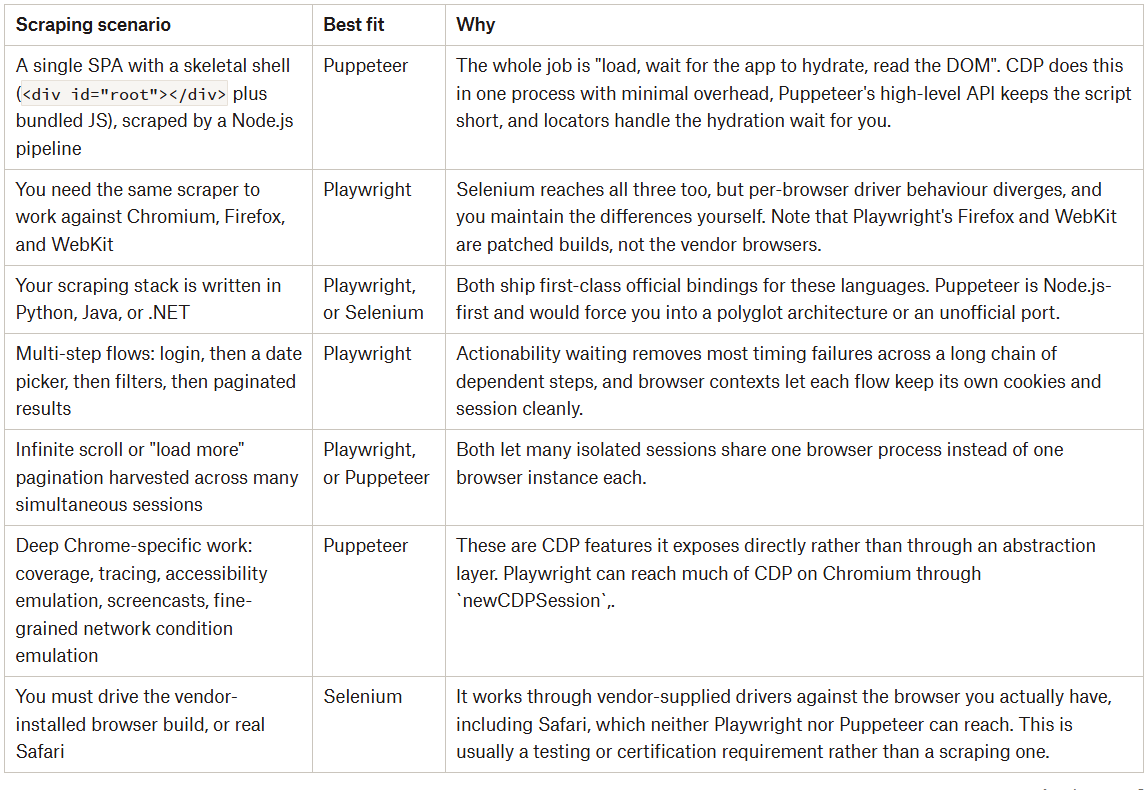
Conclusion
In this article, you learned that deciding whether a page needs a headless browser is a diagnostic matter. You saw how a browser differs from a plain HTTP request, which symptoms suggest JavaScript rendering is involved, how to confirm those symptoms with a few quick tests, and how to pick the right tool once rendering turns out to be unavoidable.
The value is in the order you do those things. An empty extraction result doesn’t tell you much if you can’t tell whether the data was never sent, was already embedded in a script tag, or was sitting behind an interaction or an access check. But a process that takes you from symptom to confirmed cause before you pay for rendering? That’s where the real value is! And the same reasoning carries into the tool choice, because a real browser engine buys you coverage and maintainability, never invisibility. So the decisions that actually matter are which framework fits the shape of your workload, and which masking layer for it you can keep current against the target’s checks.
So, let us know: What’s your process to decide whether a page needs JavaScript rendering? And which one of Puppeteer, Playwright, and Selenium ended up in your stack, and what made you pick it? Let’s discuss in the comments!
Did you like this article? Share it with someone who might find it useful and get a discount on paid plans.