

If you follow online communities, you’ve probably seen someone dismiss chrome-devtools-mcp as a copy of Playwright MCP. I understand the reaction. Both are MCP servers, both let AI agents interact with a browser, and both appear in many of the same setup guides.
But they have some fundamental differences, and those differences become more apparent when you use them for real-world tasks…
In this article, I’ll explore what each tool offers, where their capabilities overlap, where they differ, and how to decide which one to use, or whether using both makes sense.
A Quick Overview of Playwright MCP and chrome-devtools-mcp
Playwright MCP is Microsoft’s MCP server built on top of Playwright. Instead, chrome-devtools-mcp (also known as Chrome DevTools for agents) is Google’s MCP server built on the CDP (Chrome DevTools Protocol), relying on Puppeteer to automate browser interactions.
Although both equip AI agents with tools for browser automation, they serve different purposes. Playwright MCP focuses on exposing Playwright’s browser automation capabilities, making it well-suited for controlling browsers and executing automated workflows. In contrast, chrome-devtools-mcp combines browser automation with deeper insights into Chrome’s underlying behavior, including performance monitoring, network activity, and SEO analysis.
In the rest of this post, I’ll explore both tools in detail, compare their capabilities, and explain where each one fits best.
Give your AI a web data layer – Decodo’s Web Data API turns any site into clean, structured data your models can actually use.

An Introduction to Playwright MCP
Now that you have a high-level understanding of Playwright MCP vs chrome-devtools-mcp, let me introduce you to Playwright MCP.
What Playwright MCP Is
Playwright MCP is an MCP server from Microsoft that exposes Playwright’s API as tools that AI agents can call. It was released in March 2025 and quickly became one of the most popular MCP servers, with over 38k GitHub stars at the time of writing.
By default, it runs as a local process over stdio, but you can also start it as an HTTP server with the --port flag. That comes in handy when the browser has to run on a machine with no GUI, or when several clients share one server.
Further reading:
Key Features
Playwright MCP’s main capabilities include:
LLM-friendly page interaction: Provides structured page data based on Playwright’s accessibility tree, allowing AI agents to interact with web pages without requiring a vision model.
Deterministic element targeting: References in page snapshots help agents identify and interact with specific elements across calls, reducing the ambiguity associated with screenshot-based targeting.
Cross-browser support: Supports browser sessions in Chromium, Firefox, WebKit, and Microsoft Edge.
Session management: Can start a fresh browser session or, when configured, connect to an existing session.
Connection flexibility: Can launch a local browser or connect to a remote browser through a CDP endpoint.
Opt-in tool groups: Its tools are organized into groups, such as network, storage, DevTools, vision, PDF, and testing. You can enable only the groups you need to reduce tool overhead, a common concern when working with MCP servers.
Recording and video capture: Supports tracing, video recording with chapter markers, and recording user interactions, making it easier to review and debug automated sessions.
Main Tools
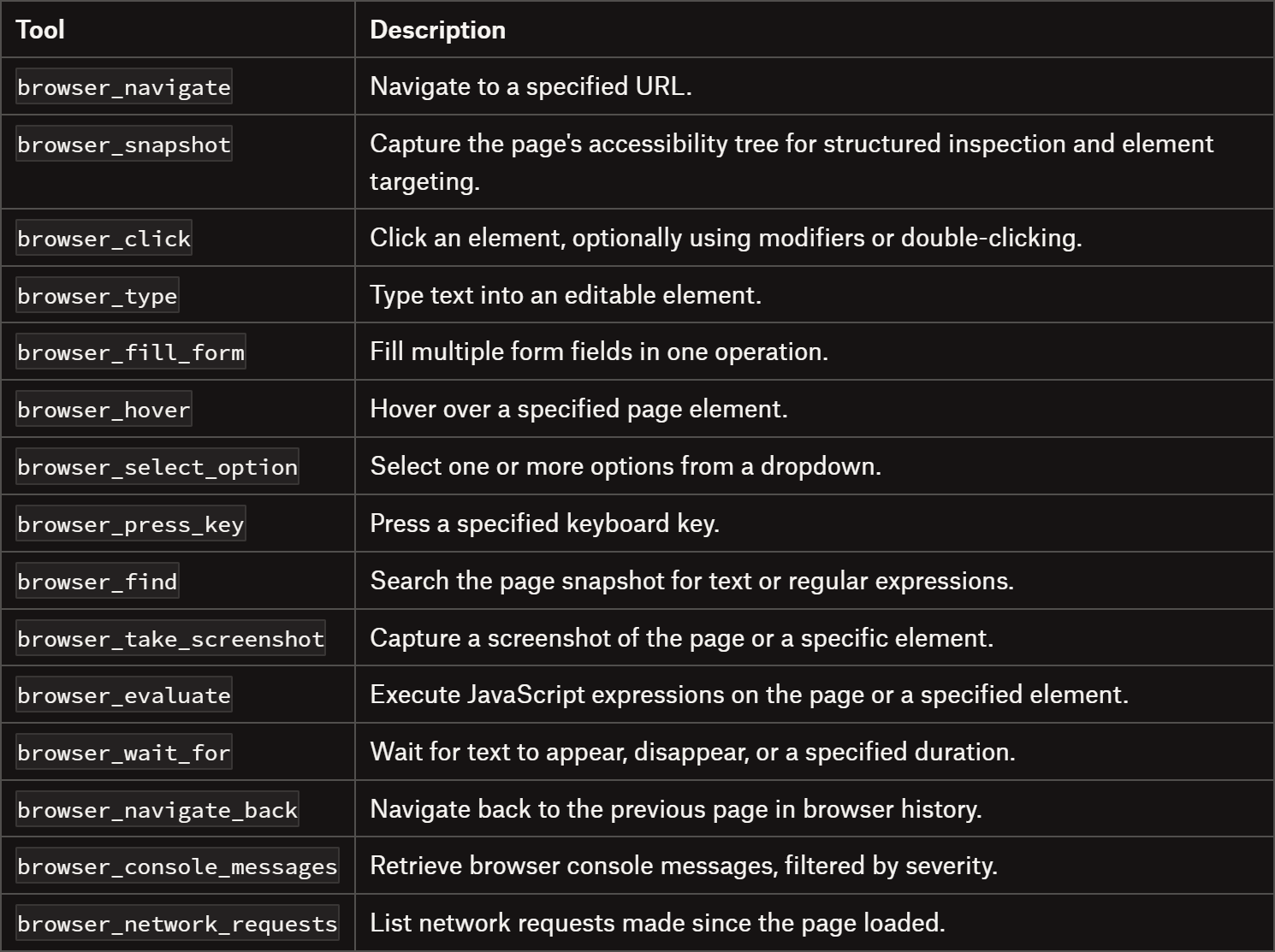
The table lists the most useful tools exposed by the Playwright MCP:
How Playwright MCP Works
Playwright MCP sits between your AI agent and the Playwright engine. In an AI agent scenario, the process works as follows:
The AI agent interprets the user’s instructions and determines which MCP tools need to be called.
The MCP tools call the underlying Playwright API.
Playwright performs the corresponding actions in the browser via CDP.
First, the agent navigates to a page using browser_navigate. When it needs to interact with the page, it typically calls browser_snapshot to retrieve a structured representation of the page’s accessibility tree. This references elements on the page using a format like this:
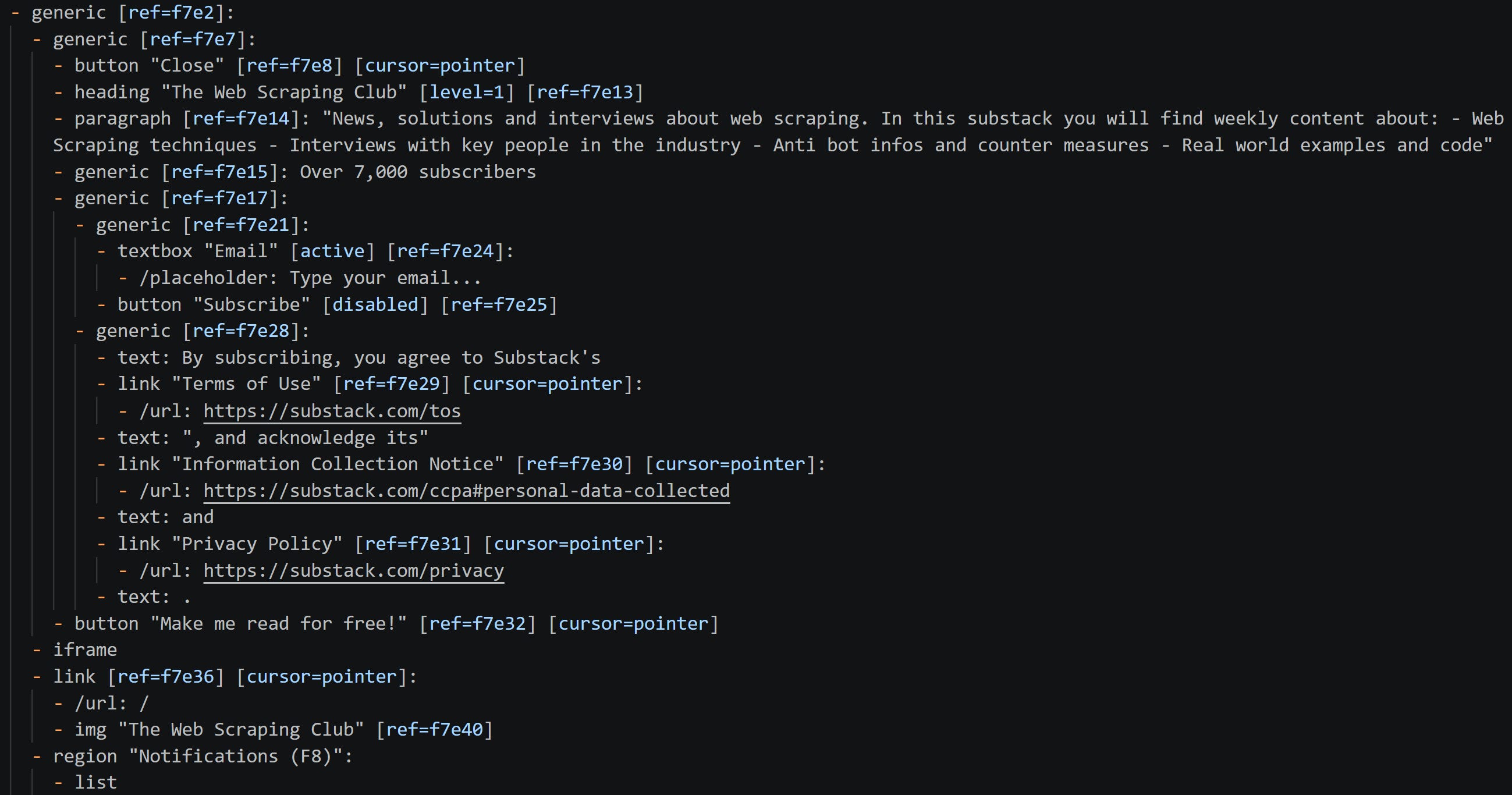
The agent then selects a reference and passes it to an interaction tool, such as browser_click. The server resolves the reference to a Playwright locator, performs the requested action, and returns the updated page state to the agent.
Using the same workflow, an AI agent can interact with other page elements, such as buttons, links, text fields, and dropdowns, to complete multi-step browser workflows.
Tired of getting blocked while scraping the web?
ScrapingBee handles proxies, browsers, anti-bot systems, and retries so you can focus on your data. Get clean Markdown, JSON, or HTML from the web with up to a 99.9% success rate. ScrapingBee is SOC 2 Type II and GDPR compliant, and trusted by 4,000+ developers.

A Beginner’s Guide to chrome-devtools-mcp
After exploring Playwright MCP, it’s time to dig into chrome-devtools-mcp.
What Is chrome-devtools-mcp?
chrome-devtools-mcp is the MCP server for Google Chrome DevTools, maintained by the Chrome DevTools team on GitHub. It entered public preview in September 2025 and has grown rapidly since then, gaining over 54k GitHub stars.
Like Playwright MCP, it communicates over stdio. It can also connect to an existing Chrome instance through a browser URL or WebSocket endpoint, rather than always launching a new browser instance.
Further reading:
Key Features
Chrome DevTools for agents provides many features, such as:
Performance insights: Records performance traces and analyzes them using Chrome DevTools’ analysis engine, returning actionable insights such as Largest Contentful Paint (LCP) breakdowns.
Advanced debugging: Inspects network requests and retrieves JavaScript console messages, including source-mapped stack traces to help identify errors.
Reliable browser automation: Uses Puppeteer to execute browser actions such as clicking elements, typing text, and navigating between pages.
Lighthouse audits: Runs accessibility, SEO, and best-practices audits through a single tool call, without requiring a separate process.
Memory snapshots: Captures V8 heap snapshots to disk, helping developers investigate memory usage and identify potential memory leaks.
Live Chrome attachment: Connects to an existing Chrome instance, allowing agents to work with an already-open browser session.
Emulation controls: Configures CPU and network throttling, viewport dimensions, user agent, geolocation, and color scheme to simulate different devices and environments.
Slim mode: Offers a reduced set of three tools for navigation, script execution, and screenshots, helping minimize context usage.
Main Tools
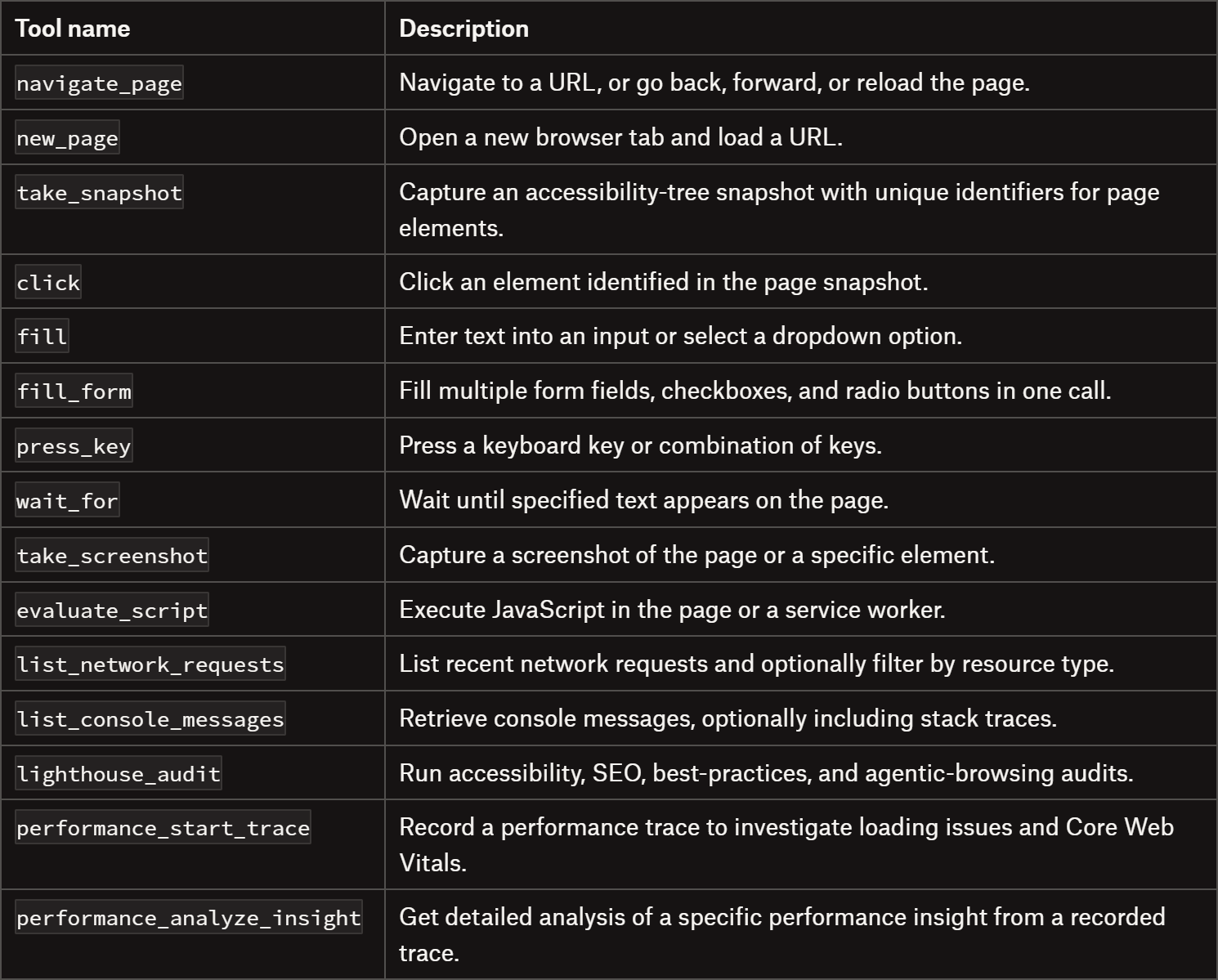
Discover the most useful tools provided by the MCP server:
How Does Chrome DevTools for Agents Work
For browser automation tasks such as clicking, typing, and navigating, Chrome DevTools for agents relies on Puppeteer through the CDP, following an approach similar to Playwright MCP (which is where the confusion between the two tools stems from).
For all other features, it reuses the analysis engines that power Chrome DevTools:
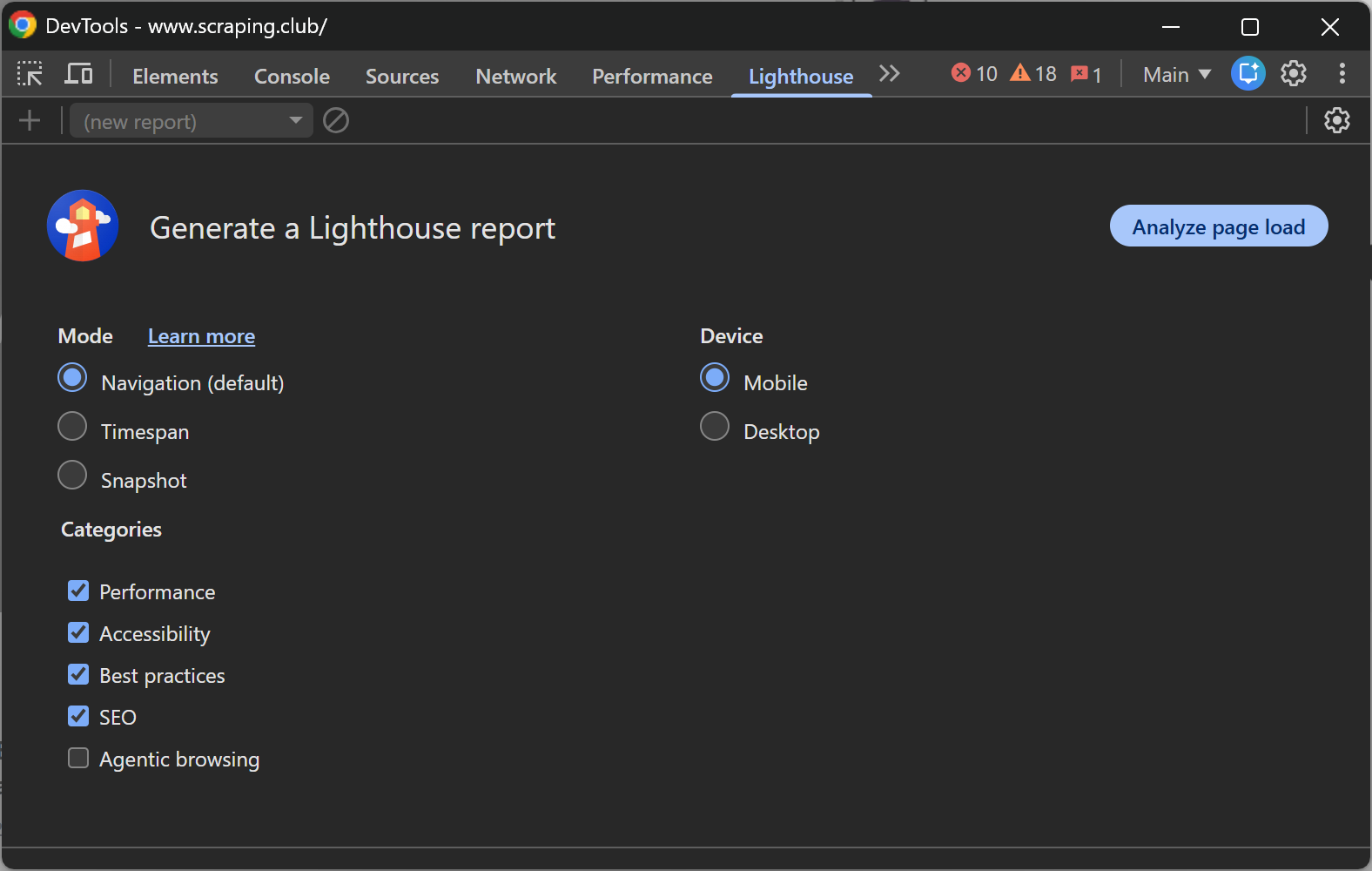
This reliance on Chrome-specific technologies also explains why chrome-devtools-mcp supports only Google Chrome and Chrome for Testing.
When to Use Playwright MCP
Playwright MCP is especially useful when you want an AI agent to interact with dynamic and/or highly interactive websites. Other use cases are also supported.
Testing Flows Across Browsers
If your automation needs to work across Chromium-based browsers, Firefox, and Safari, Playwright MCP has you covered. Use the --browser flag to select the browser engine, while keeping the same set of tools across browser configurations.
Automating Multi-Step Workflows
Most browser automation scenarios involve multiple steps. Playwright MCP provides tools that let an AI agent inspect the current page, understand what’s happening, and decide what to do next. This makes it well suited to workflows such as navigating a site, filling out forms, handling infinite scrolling scenarios, and completing multi-step wizards.
Inspecting Network Requests
Dynamic websites often load data through AJAX or other network requests. Inspecting these requests can be a convenient way to retrieve structured data directly, without relying solely on information rendered on the page. Playwright MCP supports this through tools such as browser_network_requests and browser_network_request.
Preserving Cookies Between Runs
Some automation workflows are easier (or even only possible!) when specific cookies or local storage values are already present, such as consent preferences or session data. With --caps=storage, an agent can use browser_storage_state to save cookies and local storage to a file, then restore that state in a later run with browser_set_storage_state.
When to Use Chrome DevTools MCP
chrome-devtools-mcp is a strong choice when you need the kind of debugging and performance insights you’d normally get by opening Chrome DevTools yourself.
Automating Browser Workflows
chrome-devtools-mcp provides browser interaction tools powered by Puppeteer, allowing an AI agent to navigate pages, click elements, fill out forms, and interact with web applications. However, it supports only Chromium-based browsers and Firefox.
Investigating Slow Pages
When a page feels slow, guessing rarely helps. Start a performance trace with performance_start_trace, reproduce the issue, and stop the trace with performance_stop_trace. The resulting trace includes named performance insights that help identify potential bottlenecks.
For example, if LCP (Largest Contentful Paint) is poor, the agent can call performance_analyze_insight to examine the LCP breakdown and identify which phase is taking the most time.
Before measuring, you can also employ the emulation tools to throttle CPU and network speed, simulating a mid-range mobile device rather than your fast development machine. These are capabilities that Playwright MCP doesn’t offer.
Diagnosing Console Errors
The list_console_messages tool retrieves browser console output and can include stack traces that map back to the page’s source code when source maps are available. This helps agents investigate JavaScript errors, failed operations, and other issues that may prevent a page from working as expected.
Combined with network inspection tools, console messages can also help narrow down whether a problem stems from client-side code or failed network requests.
Running Accessibility and SEO Audits
Lighthouse reports can be useful, but generating them manually often means switching between tools. The lighthouse_audit tool lets an AI agent run audits directly as part of its workflow, covering areas such as accessibility, SEO, and best practices.
Investigating Memory Leaks
Memory leaks can be difficult to detect until a page becomes sluggish or unresponsive. The take_memory_snapshot tool captures a V8 heap snapshot and saves it to a specified path for further analysis.
This low-level memory investigation capability goes beyond Playwright MCP’s core browser automation tools.
Can Playwright MCP and Chrome DevTools MCP Be Used Together?
Yes, but how you combine them matters more than the fact that you can!
The obvious setup, which involves installing both servers and letting each launch its own browser, can be the wrong choice. Sure, it works for independent, stateless tasks, but each server operates in its own browser session. Cookies, local storage, open tabs, and in-progress workflows don’t automatically carry over.
For example, if Playwright MCP opens an e-commerce page and clicks “Load more” five times, a separately launched Chrome DevTools MCP browser on the same URL will still see the initially loaded products. It won’t inherit the state of the page controlled by Playwright MCP.
A more useful setup is to have both MCP servers connect to the same Chrome (or Firefox, but not Safari, as it isn’t supported by both) instance. After all, both tools speak CDP, a browser can accept multiple connections over the same remote debugging port, and both tools can connect to a CDP endpoint. So, that’s possible!
Note: Multiple connections to the same CDP endpoint don’t guarantee that both servers can control the browser concurrently without conflicts, so validate the configuration before relying on it.
With this setup, both servers can act on the same tabs, cookies, and session, and the agent can pick the right tool for each step. Playwright MCP can drive the workflow. Once the page is in the state you care about, Chrome DevTools MCP can profile it, run an audit, take a heap snapshot, or read source-mapped console errors. Nothing needs to be re-created, because both servers are working with the same live page.
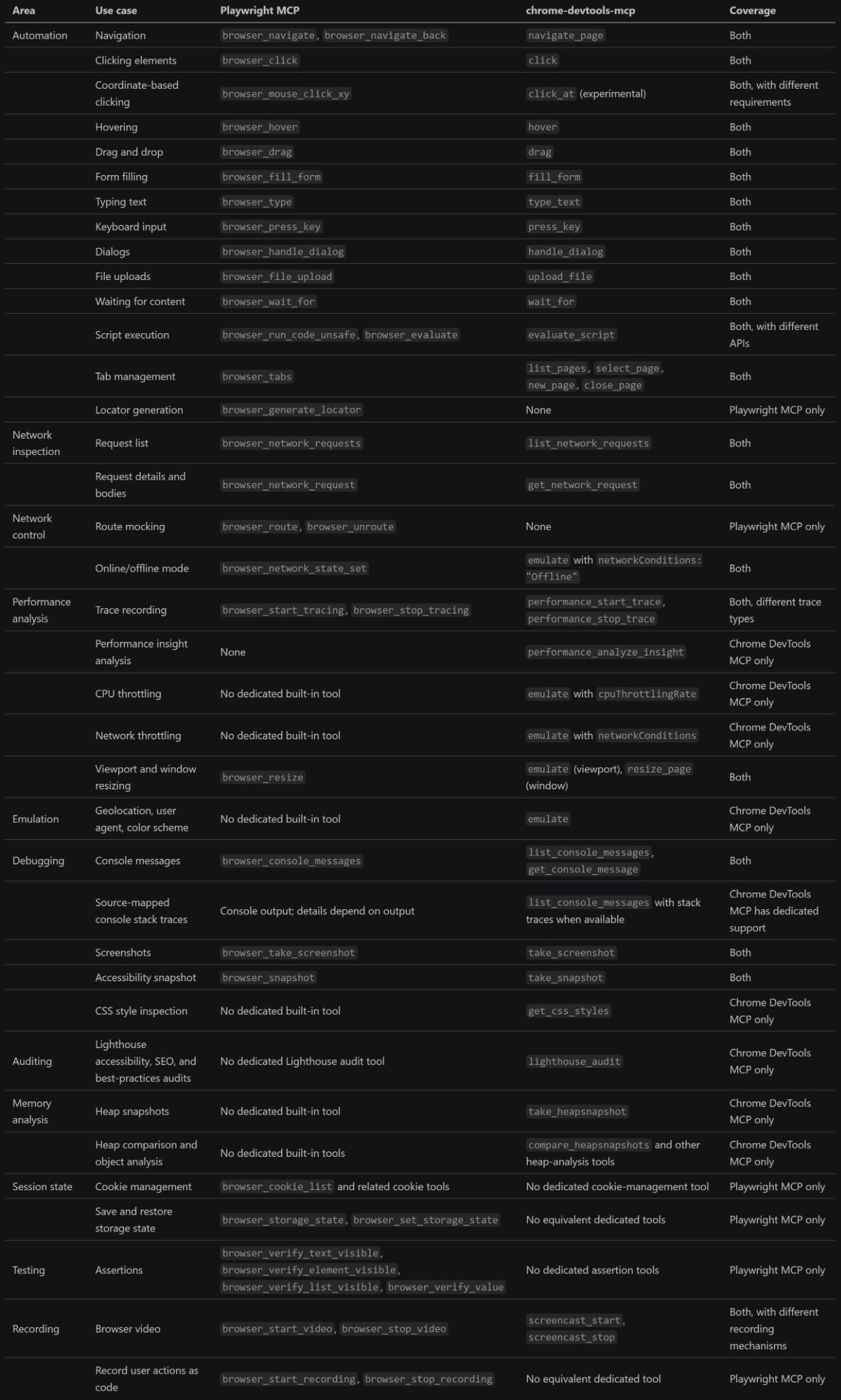
For a detailed comparison, refer to the full coverage table below:
Final Thoughts
In this article, I’ve explained why Playwright MCP and chrome-devtools-mcp may look similar at first glance but have distinct strengths. You’ve now seen what each tool offers and where each one excels.
To be honest, most of Chrome DevTools MCP’s additional capabilities are more useful for testing, debugging, performance analysis, and SEO audits rather than for web scraping or general browser automation. For those tasks, Playwright MCP may be the better choice (just as Playwright is one of the best options for web scraping!)
That said, access to Chrome’s console messages and debugging tools can still be valuable. That’s one reason it can make sense to connect both MCP servers to the same browser session, allowing the agent to use each tool when it fits the task. With remote browsers, however, this setup can be more challenging unless the cloud browser provider supports persistent sessions and allows both servers to connect to the same browser instance.
I hope this article has cleared up some of the confusion and helped you understand which tool is best suited to your needs. If you have any questions or suggestions, feel free to leave a comment below. Until next time!
Did you like this article? Share it with someone who might find it useful and get a discount on paid plans.
FAQ
Does Chrome DevTools for agents come with a CLI?
Yes. Alongside the MCP server, chrome-devtools-mcp ships a command-line interface for users (or agents) that prefer shell commands. It’s documented in the project’s docs, and the project also bundles a skill to help agents use it.
Does Playwright MCP come with a CLI?
No, Playwright MCP is only an MCP server. Microsoft publishes a separate package, @playwright/cli, which gives coding agents concise shell commands and skills. It’s a different product from Playwright MCP and from the Playwright test runner, so check the package name before you install.
Do Playwright MCP and Chrome DevTools MCP support connection to remote browsers?
Yes, both can connect to a remote browser over CDP. Playwright MCP uses --cdp-endpoint, and chrome-devtools-mcp uses --wsEndpoint or --browserUrl. Remote stealth browsers typically handle proxies and anti-bot measures on their side, helping your AI-powered automation avoid being blocked.